To download WhatsApp status of friends is easy in 2026. WhatsApp has no download button, but you can download WhatsApp status using these 3 safe methods. No third-party app needed to download WhatsApp status.
Did You Like a Friend’s WhatsApp Status? Want to Save the Photo or Video but Can’t Find a Download Option?
WhatsApp intentionally doesn’t provide a status download button. It’s for privacy reasons. But there are 3 safe methods you can use to save anyone’s status to your phone. No app required. No risk involved.
These 3 methods work 100% in 2026. For both Android and iPhone.
Method 1: Save Status Using File Manager – No App Needed
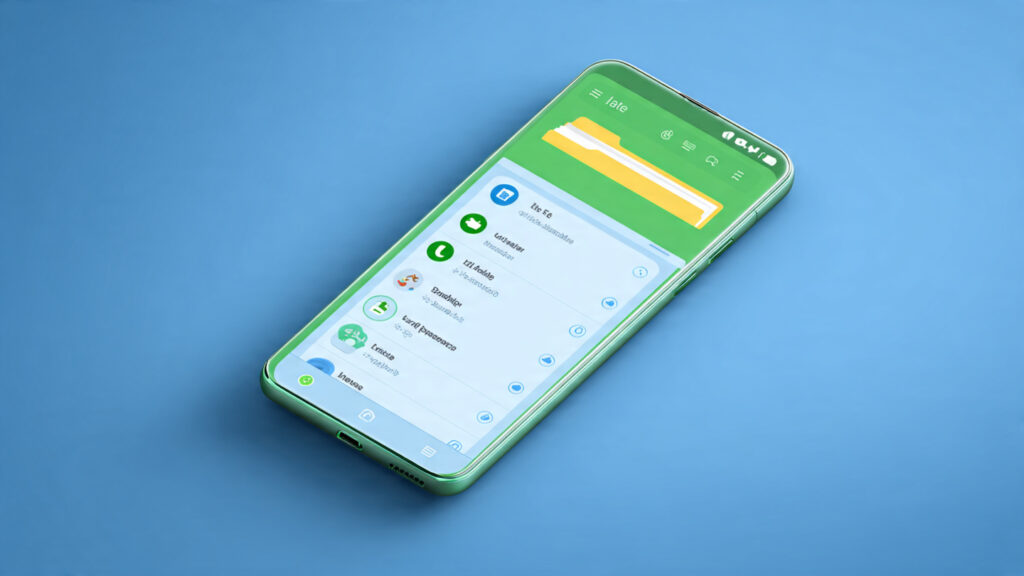
File manager trick helps you download WhatsApp status secretly. This is the safest method. No need to install any app. No risk of viruses.
For Android Users:
Step 1: First, view the status on WhatsApp that you want to save. Watch it completely. Viewing the status creates a temporary file on your phone.
Step 2: Now open the File Manager app. Every phone has one. It’s usually named “My Files” or “File Manager.”
Step 3: Go to Settings and turn on “Show Hidden Files.” This is essential, otherwise the folder won’t be visible.
Step 4: Navigate to this path:Android > Media > com.whatsapp > WhatsApp > Media > .Statuses
Step 5: Here you’ll find all the photos and videos you’ve viewed in the last 24 hours. Copy the one you want and paste it into your Gallery folder.
For iPhone Users:
This method doesn’t work on iPhone because Apple doesn’t allow access to hidden files. iPhone users should use Method 2 or 3.
Pros: 100% safe, no app, no data leak.
Cons: You have to do it after viewing each status.
Method 2: Take a Screen Recording or Screenshot
You can also download WhatsApp status using Google Files app. This is the easiest method and works on every phone.
For Photo Status:
- Open the status
- Take a screenshot. Android: Power + Volume Down. iPhone: Power + Volume Up
- It will be saved to your Gallery
For Video Status:
- Open the status
- Turn on the screen recorder. Every phone has one. You’ll find the “Screen Record” option in your notification panel
- Let the status play completely
- Stop the recording. The video will be saved in your Gallery
Pro Tip: Before taking a screenshot, tap the screen to hide the time and name. You’ll get a cleaner photo.
Pros: Takes 2 seconds, works on all phones.
Cons: Video quality may drop slig
How to Download WhatsApp Status Without App?
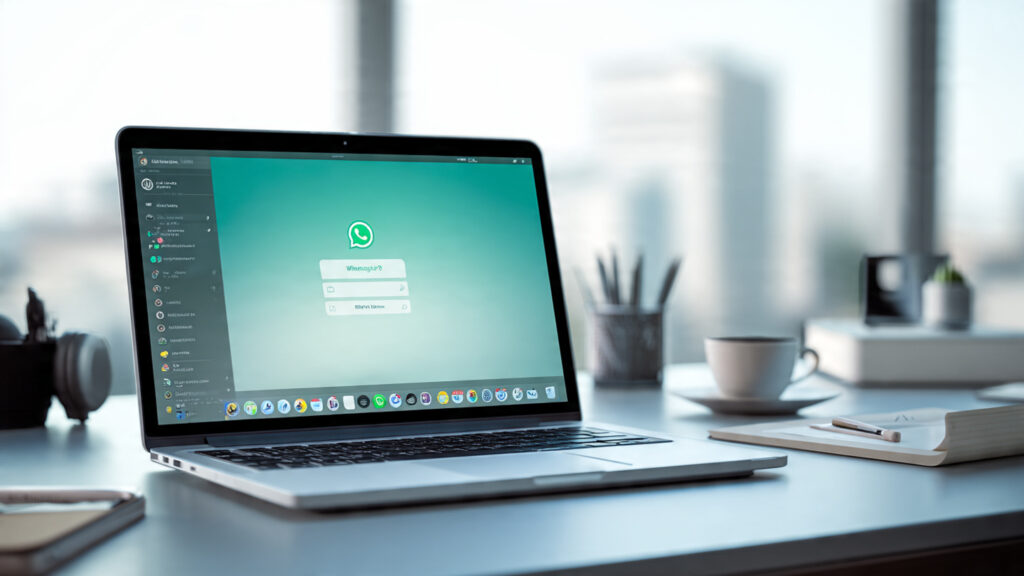
If you use a PC or laptop, this is the best method. This screenshot method can download WhatsApp status image instantly.
Step 1: Open http://web.whatsapp.com on your computer
Step 2: Scan the QR code with your phone to log in
Step 3: Open the chat of the friend whose status you want to view, click their profile, and view the status
Step 4: Right-click on the status and click “Save image as” or “Save video as”
The photo or video will download directly to your computer in full quality.
Pros: Full HD quality, downloads in one click.
Cons: Requires a PC.
Is Downloading Status Legal?
Yes, if you’re doing it for personal use. But sharing someone’s private photo/video without their permission or posting it on social media is wrong. It can even get your WhatsApp account banned.
Only save statuses of friends who won’t mind. Or ask them first.
Which Apps Should You Avoid?
There are tons of “Status Saver” apps on the Play Store. 90% of them are full of viruses or ads. These apps can steal your WhatsApp data.
Never install any app that asks for WhatsApp access. The File Manager method is the safest.
Conclusion: Which Method Is Best?
Android users: Use Method 1. Safe and full quality.
iPhone users: Use Method 2. Screen recording works best.
PC users: Use Method 3. HD download in 1 click.
Now you can save anyone’s status. No app, no risk.
Which method do you use? Tell us in the comments.
For privacy info, read WhatsApp’s Official Status Help Page.https://faq.whatsapp.com/539097981915495
Also read: Phone Hanging Problem? 5 Easy Ways to Make Phone Fast
Also read: Mobile Internet Slow? 5 Tips to Double Your Speed